
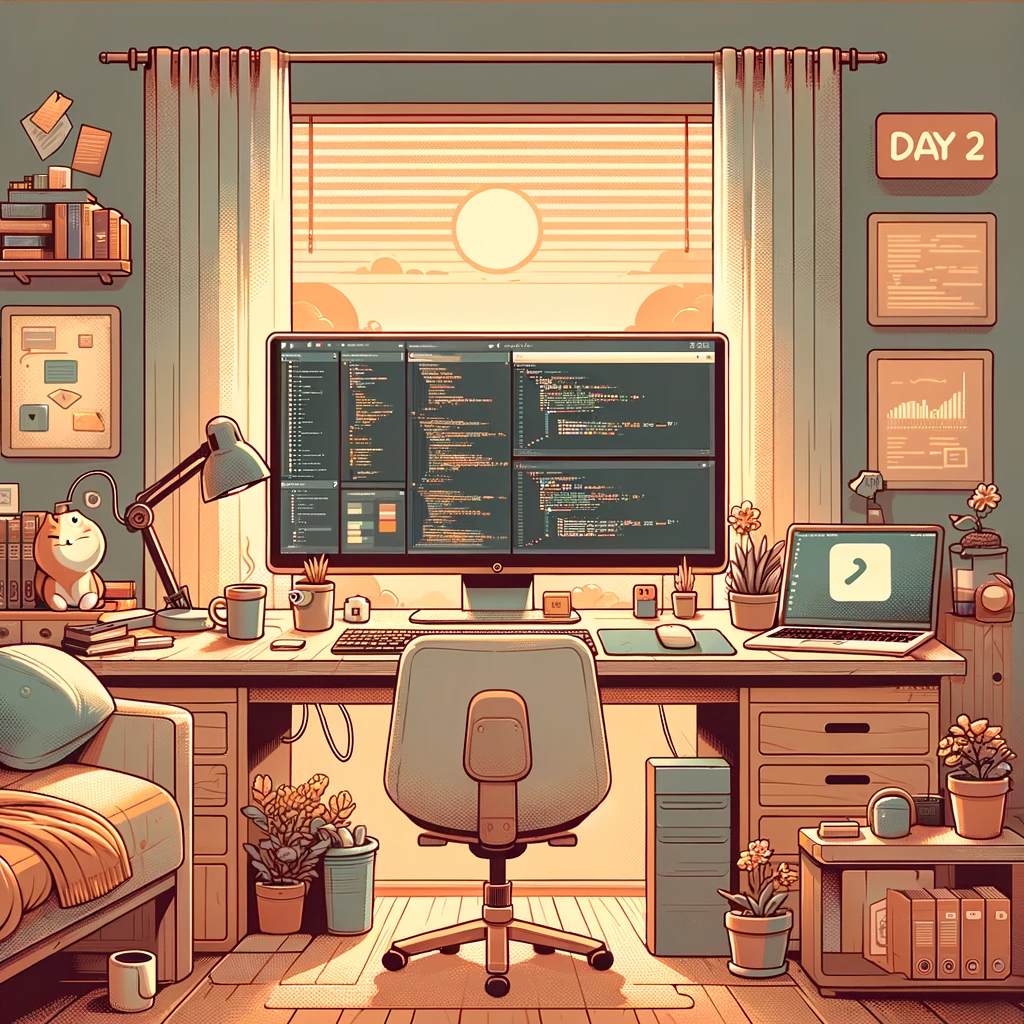
Setting up your Development Environment for JavaScript
Welcome to Day 2 of our JavaScript course! Today, we're going to get you all set up with the necessary tools and environment to start writing and running JavaScript code. Having a well-configured development environment is crucial for smooth coding and debugging experiences. Let's dive in.
Prerequisites
Before we begin, make sure you have the following prerequisites installed on your computer:
Web Browser: You'll need a modern web browser like Google Chrome, Mozilla Firefox, or Microsoft Edge. We'll be using the browser's developer tools extensively.
Text Editor or IDE (Integrated Development Environment):** Choose a text editor or IDE of your choice. Some popular options include Visual Studio Code, Sublime Text, Atom, or WebStorm. These tools provide code highlighting, autocompletion, and other features to make coding easier.
Setting up Visual Studio Code (VS Code)
We highly recommend Visual Studio Code (VS Code) due to its popularity, extensive community support, and a wide range of extensions available for JavaScript development.
Follow these steps to set up VS Code:
1. Download VS Code: Go to the [Visual Studio Code website](https://code.visualstudio.com/) and download the installer for your operating system.
2. Install VS Code: Run the installer and follow the installation instructions.
3. Install Extensions: VS Code can be enhanced with extensions. Some essential extensions for JavaScript development include: - "ESLint" for code linting and style checking. - "Prettier" for code formatting. - "Live Server" for a simple development server.
You can install these extensions directly from the Extensions Marketplace within VS Code.
4. Workspace Setup: Create a project folder on your computer where you'll store your JavaScript files. Open this folder in VS Code.
HTML Setup
First, let's start with the basic structure of an HTML document that links to a JavaScript file. The HTML structure is as follows:
Creating the JavaScript File
Basic DOM Manipulation Commands
Creating and Adding Elements: You can create new HTML elements and add them to the page. For example, to create a new paragraph:
Conclusion
By linking a JavaScript file to your HTML and using basic DOM manipulation techniques, you can start building interactive web pages. The key is to experiment with different DOM methods and properties to see how they affect the webpage. As you get more comfortable with these basics, you'll be well on your way to mastering more complex JavaScript functionalities for web development.